

Secure Client Portal Best Practices for Therapists
Last Updated on November 12, 2026
Secure Client Portal best Practices come down to three things: Access controls, encryption, and automated document workflows that satisfy HIPAA Security Rule guidance. For therapists, that means a HIPAA-compliant Patient Portal that handles Secure document sharing While keeping unauthorized users out. Get it right and you’ll cut admin time by 30% and give patients the 24/7 Access they increasingly expect.
Why Secure Client Portal Best Practices Matter in Therapy
Therapy is built on trust. Patients share the most sensitive details of their lives, and a single breach destroys that trust instantly. Generic practice management portals often lack the granular controls behavioral health actually requires — they’re built for primary care, not for protecting a Client’s trauma history.
A Secure Portal isn’t about storage; it’s about controlling who sees what, and when. That’s where most small Practices fall short. They email intake forms as PDFs. They send session summaries over Gmail. Each of those habits is a liability. Hypnotes addresses this by putting scheduling, documents, and billing inside one Secure environment, cutting out the third-party email chains that expand your exposure.
Step-by-Step: Configuring Your HIPAA-Compliant Patient Portal
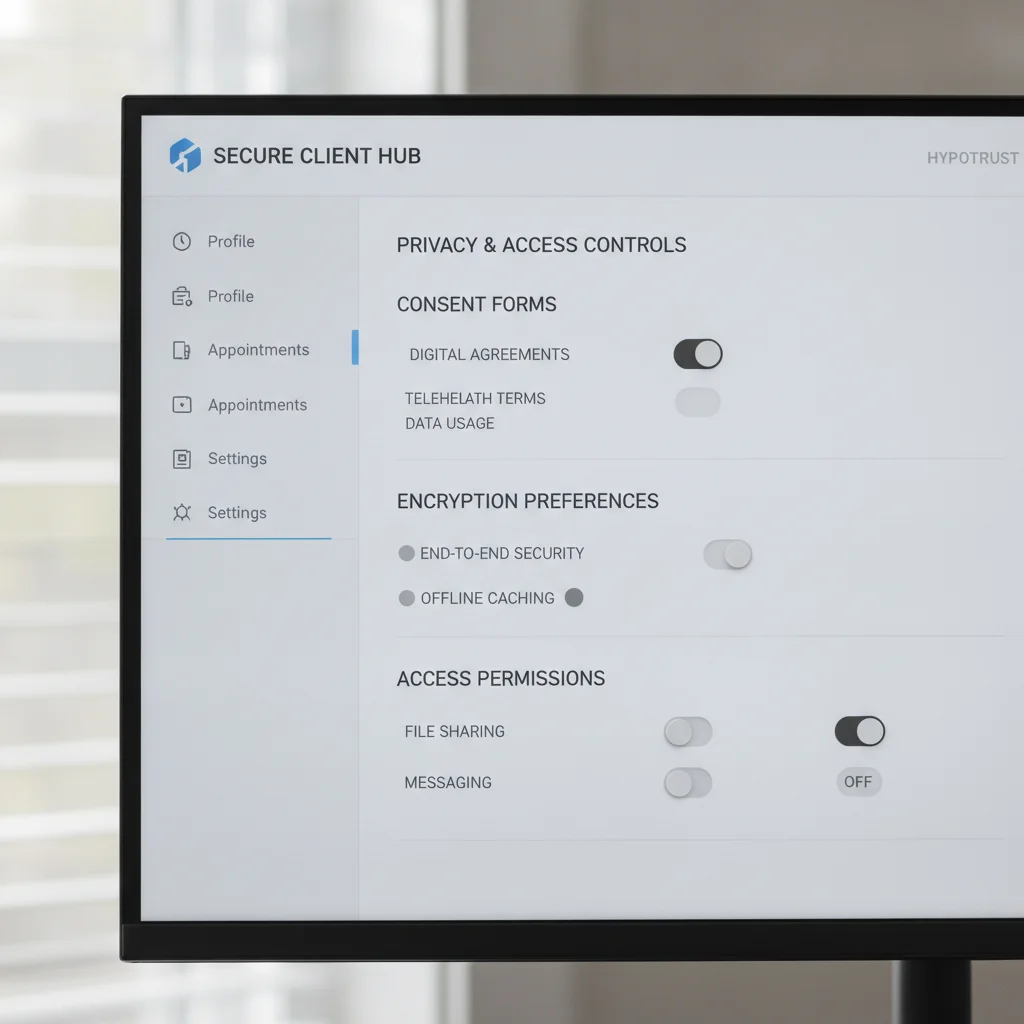
Basic setup takes about ten minutes. We’ve structured these steps around the most common workflows for therapy, wellness, and behavioral health providers.
- Enable Two-Factor Authentication (2FA) for all staff accounts. Non-negotiable. Every clinician should log in with SMS or app-based verification — no exceptions for convenience.
- Define Role-Based Access Levels. Distinguish between Admins, Clinicians, and Front-Desk Staff. Clinicians get full Patient records; front-desk sees only scheduling and billing data.
- Activate Auto-Expiry for Patient Logins. Set sessions to expire after 15 minutes of inactivity. This protects clients who log in from a shared device at a café or waiting room.
- Configure Default Permission Sets. Decide what patients see by default — typically upcoming appointments and confirmed insurance plans. Keep mental health notes hidden unless you’ve made a deliberate clinical decision to share them.
- Test the Notification Flow. Send a test appointment reminder to a dummy account. Verify it arrives via SMS or email and that the link opens the Secure Portal correctly.
Each of these steps reduces admin overhead. When reminders and insurance verification run automatically, your front-desk team spends time on check-ins — not data entry.
Customization Options for Patient Experience
A cluttered Portal raises anxiety. Patients should land on a clean dashboard, not a wall of widgets they’ll never use. The Hypnotes Client Portal features let you hide irrelevant sections entirely. If you don’t use forms and surveys for every Client, turn those widgets off. Patients should find their session summaries and payment options within two clicks — if it takes longer than that, you’ll hear about it.
How to Safeguard Privacy with Granular Controls
Privacy isn’t a switch you flip. It’s a spectrum of permissions, and the most common mistake therapists make is giving patients full read Access to their raw clinical notes. That often leads to confusion or distress — neither of which helps the therapeutic alliance.
Granular permissions let you share session summaries without exposing raw clinical notes. In Hypnotes, you can upload a Patient-facing summary document While keeping the underlying clinical file locked down. Patients get what they need for self-management — homework, resources, visit summaries — without seeing your internal clinical reasoning. You stay in control of the narrative.
Secure Document Sharing and Session Summaries
Sharing session summaries builds continuity of care. Patients forget details between sessions; a Portal lets them review key takeaways on their own time. HIPAA Security Rule guidance emphasizes data integrity, but it also supports Patient engagement with their own health information. Here’s how to make that work in practice:
- Standardize Templates: Pre-built session summary templates keep your notes consistent without writing from scratch every time.
- Use the AI Scribe: Let the AI Assistant draft the summary, then review it, add your clinical judgment, and publish it to the Portal. That alone saves 15–20 minutes per Patient.
- Attach Resources: Link directly to PDFs or web pages for homework. Patients can Access these between sessions, not just when you’re in the room together.
This workflow turns the Portal from a static record into an active part of the Patient’s recovery. That’s what therapy Patient Access should actually mean.
Payment Processing and Insurance Billing Integration
Friction in payment collection creates unpaid invoices. Your Secure Client Portal should handle both insurance billing and out-of-pocket payments without making patients jump through hoops. They need to see their balance, pay with a card, and download a receipt — start to finish, inside the Portal.
Integrate your billing system so posted charges appear automatically. When a Patient pays, the invoice marks as “Settled” in real time. No follow-up emails, no manual reconciliation. You also get a clean audit trail and can send automated reminders to patients with outstanding balances rather than making awkward phone calls.
Pro Tip: Enable Auto-Redirect for Payments
Set your Portal to redirect patients to a payment page when they log in with an outstanding balance. This captures payment intent at the moment of highest engagement.
User-Experience Tips to Boost Patient Access

The best security features fail if patients can’t figure out how to use them. Poor UX breeds workarounds — and nothing signals a broken Portal faster than a Patient emailing you a screenshot of their own dashboard. Keep it simple.
Onboarding is Half the Battle
Send a welcome email with a short video tutorial. Show them how to change their password, view appointments, and pay. A 60-second video cuts support calls by half. Make sure the Portal works on mobile — most patients Access health portals from their phones, not desktops. Test the layout on both an iPhone and an Android before you go live.
Accessibility Matters
Your Portal should meet WCAG standards. Use high-contrast text. Don’t rely on color alone to signal status — if “overdue” is red and “paid” is green, add text labels too. Patients with visual impairments deserve the same Access to their care as everyone else, and meeting that standard is part of professional practice management.
Practice Management Portal Best Practices Checklist
Use this checklist to audit your current setup. If you tick all these boxes, you’re ahead of 80% of Practices.
| Feature | Standard Practice | Best Practice (Hypnotes) |
|---|---|---|
| Login Security | Password only | 2FA + Auto-Logout |
| Document Sharing | Full record Access | Segmented View (Notes vs. Summaries) |
| Payment | Manual reconciliation | Auto-Clearing to Bill |
| Communication | Unsecured email | Encrypted In-Portal Messages |
This table shows exactly where most Practices bleed time and create security exposure. Moving from the standard column to the best-practice column doesn’t require rebuilding your workflow — it requires changing your configuration settings.
How to Choose the Right Portal Features for Your Practice
Solo therapist? You need scheduling, telehealth, and simple billing. Running a group practice? Add role-based Access and multi-clinician scheduling to that list. The point is to match features to actual pain points, not to collect the longest feature list.
Choose features that remove friction, not just features that look impressive on a comparison chart. Printing insurance cards by hand? Automate it. Emailing intake forms? Move them to the Portal. Writing notes at midnight? Use the AI Scribe. Measure the ROI in time saved per Patient — that’s the real case for a HIPAA-compliant Patient Portal.
Frequently Asked Questions
Is a Secure Client Portal required for HIPAA compliance?
Yes, if you handle electronic PHI. The law requires you to protect that data, and a Portal with encryption and Access controls is the standard way to do it. Without one, you’re relying on insecure channels like email — a significant compliance risk.
Can patients Access their mental health notes through the Portal?
It depends on your policy. Many therapists don’t give direct Access to raw clinical notes in order to protect the therapeutic narrative. Sharing session summaries instead is common practice. You control that setting in the Portal configuration.
How long does it take to set up a Portal for a new practice?
About ten minutes for basic setup. Create your profile, enter billing details, configure user permissions, and you’re ready to send invites to your first patients.
Does the Portal work with insurance billing?
Yes. Hypnotes integrates insurance billing directly. You can verify coverage, submit claims, and track payments all within the same system, which eliminates the need for separate billing software.