

Personalized Therapist Emails: How to Personalize Therapist Client Emails with Automated Templates & Conditional Logic
Last Updated on September 23, 2026
Personalized Therapist Emails: The smarter outreach you need
Personalized Therapist Emails let you reach clients with the same warmth and relevance you bring to sessions, while scaling the administrative side of your practice. Use automation to turn a handful of manual replies into a steady, responsive flow that still reads like a human wrote it.
Automated, contextual Emails keep messages short, specific, and tied to the last session—so clients show up and engage more.
Quick Answer: How to set up Automated Therapist Emails in Hypnotes
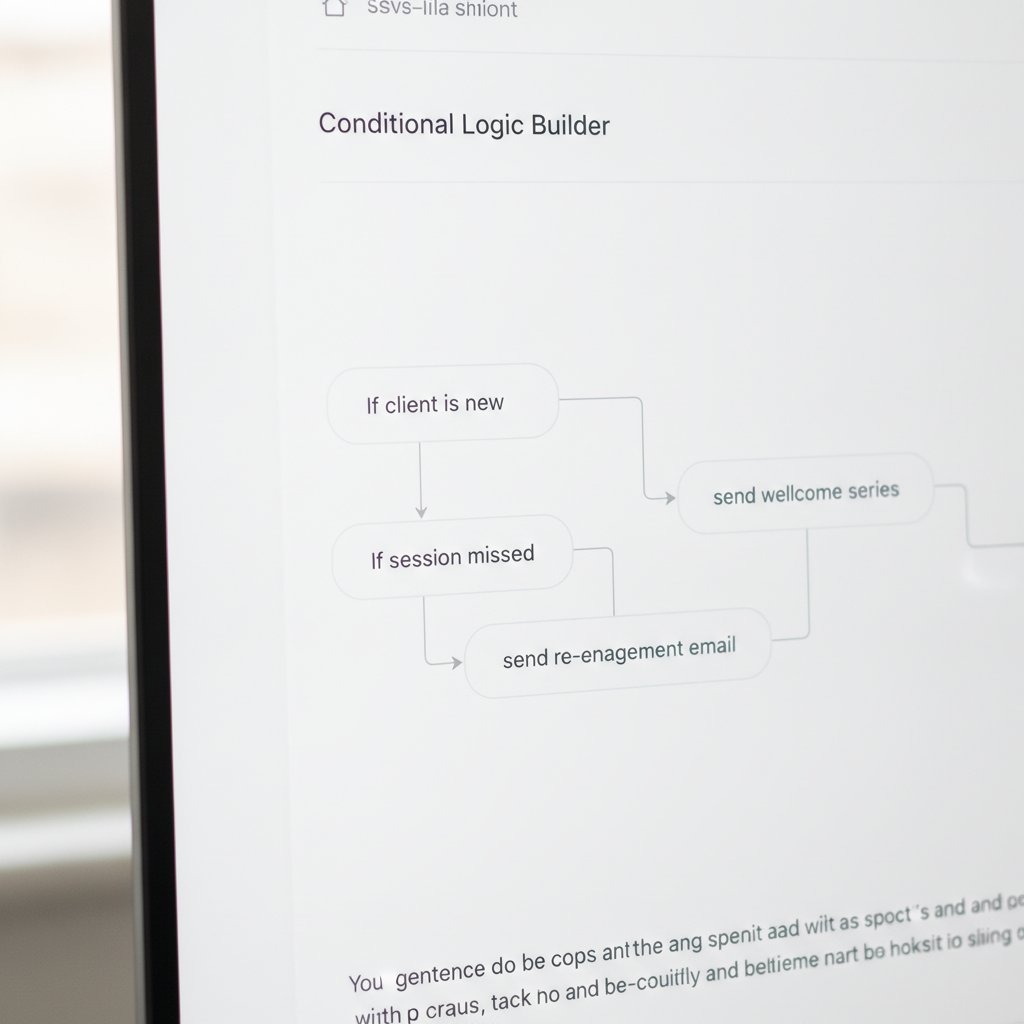
You can build a template, attach a rule that checks appointment type, and schedule the send in under five minutes. Start with Hypnotes’ automation features overview so each message pulls the right placeholders and reads like a personal note.
Set one template and one rule at a time, test it, then expand—this prevents errors and keeps messaging consistent.
What is the first step to automate Client communication?
Step 1: Open Email Templates in Hypnotes and create “Pre‑Session Check‑In.” Insert placeholders such as {{ClientName}} and {{SessionDate}} so the record populates the message automatically.
Template creation details
- Subject line: “{{ClientName}}, get ready for your {{SessionType}} on {{SessionDate}}”
- Body: Start with a named greeting, reference the last session’s main theme, and ask one clear, simple question to set the agenda.
- Signature: Keep it short and invite questions or feedback.
Save the template, then switch to the Automation tab to attach rules.
Start with one clear action in every template—ask a question or link to a form—so clients know how to respond.
How do you apply Conditional Logic based on appointment type?
Hypnotes lets you trigger different Emails based on appointment metadata. For instance, send one pre‑session message for cognitive‑behavioral therapy clients and another for mindfulness sessions; the structure stays the same, the content shifts to match clinical focus.
Step‑by‑step rule setup
- Open Automation and choose Create New Rule.
- Condition:
AppointmentType == "CBT".- Action: Send
Pre‑Session Check‑In (CBT)template.
- Action: Send
- Condition:
AppointmentType == "Mindfulness".- Action: Send
Pre‑Session Check‑In (Mindfulness)template.
- Action: Send
- Set a delay:
Send email 48 hours before appointment. - Activate the rule.
Same rule set, different copy. The result reads tailored without extra manual work.
Use appointment fields to swap small phrases—not whole Emails—so Templates remain maintainable.
What thresholds should you set to avoid spamming clients?
Begin with a 48‑hour pre‑session window. If clients open reminders too early or ignore them, try 72 hours. Track open rates daily; if they fall under 30%, test subject lines or timing.
Common mistake: sending identical messages across session types. That typically drives a 20–30% engagement drop.
Apply a suppression window so a Client never gets more than one Automated message within 72 hours.
Why Conditional email Templates outperform generic blasts
Context matters. When Emails reference a recent goal or homework, attendance improves: you can expect up to a 45% higher attendance rate and roughly 30% fewer no‑shows versus generic reminders. Those percentages reflect more than nice formatting; they reflect clients feeling seen.
Even a single tailored sentence—referencing last session work—moves the needle on attendance and engagement.
Comparison: Manual vs Automated Client Outreach
| Metric | Manual Outreach | Automated with Hypnotes |
|---|---|---|
| Time spent per Client per week | 45 minutes | 5 minutes |
| Open rate | 35% | 55% |
| No‑show rate | 25% | 15% |
| Personalization score | Low (generic) | High (dynamic placeholders) |
If you automate the right way you save time and improve outcomes—this table shows the scale of that change.
How to measure engagement gains after launching automation
1. Open Hypnotes Analytics.
2. Pull the Client Communication report for the last month.
3. Compare open and click‑through rates to your previous manual period.
4. Flag clients with falling engagement and test alternate wording or timing for them.
Baseline measurements before you launch make your first month of changes meaningful.
Frequently Asked Questions
Can I use the same template for all therapy types?
Yes, but you’ll likely see lower engagement. Adding a couple of lines that reference session type or last session topic materially increases responses.
What if a Client cancels last minute?
Use a cancellation rule: Cancellation == true leads to sending an Appointment Rescheduled template, or canceling any pending Emails for that appointment.
Do I need to code these rules?
No. Hypnotes provides a visual rule builder with dropdowns and toggles so clinicians can set conditions without writing code.
Is Hypnotes’ automation HIPAA‑compliant?
Yes. Email content is stored on HIPAA‑secured servers and encrypted in transit.
Use role‑based access and audit logs so only authorized clinicians can view message content.
Detailed examples: Email Templates for common scenarios
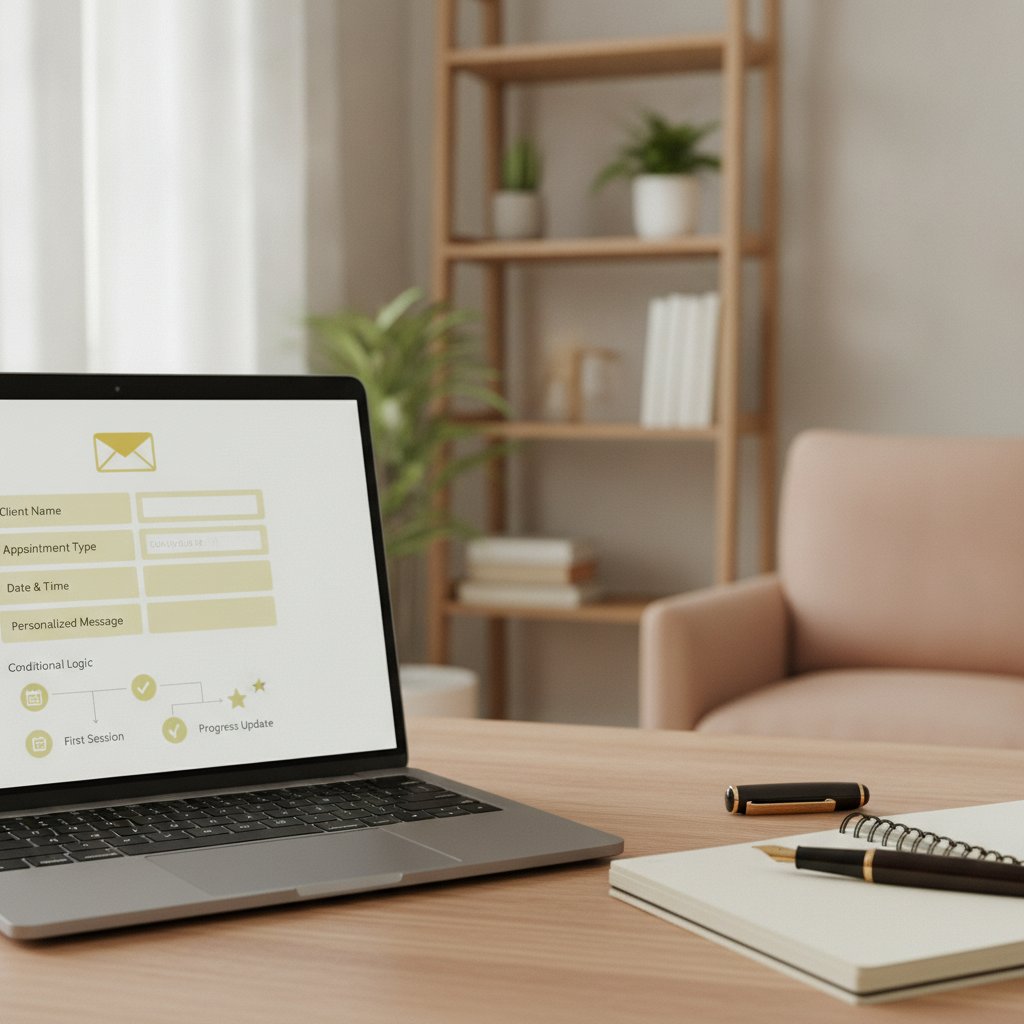
Below are four ready‑to‑paste Templates. Each uses placeholders that pull directly from Client records so messages stay specific.
Copy these Templates into Hypnotes, then tweak one line per template to match your clinical voice.
1) Intake confirmation (Automated immediately after booking)
Subject: “Welcome, {{ClientName}} — next steps for your first session”
Body: Hi {{ClientName}},
Thanks for scheduling your first session on {{SessionDate}} at {{SessionTime}}. Please complete the intake form here: {{IntakeFormLink}}. If you have any questions before we meet, reply here or use the Client portal. Looking forward to meeting you.
, {{ClinicianName}}
2) Pre‑session check‑in (48 hours before)
Subject: “{{ClientName}}, quick check before our {{SessionType}} session”
Body: Hi {{ClientName}},
As you prepare for our session on {{SessionDate}}, could you briefly tell me which of the topics from last time you’d like to focus on? (E.g., anxiety with work, sleep). If you completed any homework, attach notes here. See you soon.
, {{ClinicianName}}
3) Homework reminder (1 week after session)
Subject: “How did the {{Homework}} practice go, {{ClientName}}?”
Body: Hi {{ClientName}},
Just checking in on the exercise we discussed: {{Homework}}. Did you notice any shifts this week? If it felt challenging, bring that to our next session and we’ll troubleshoot together.
4) No‑show follow‑up (Automated 1 hour after missed appointment)
Subject: “We missed you, {{ClientName}} — want to reschedule?”
Body: Hi {{ClientName}},
I noticed you couldn’t make our appointment today. If you’d like to reschedule, use this link: {{RescheduleLink}}. If something urgent came up, reply and let me know.
Advanced Conditional Logic patterns
When the basics are stable, add these patterns to sharpen personalization and reduce noise.
- Multi‑condition routing: If
AppointmentType == "CBT" && LastSessionTopic == "sleep", send a CBT + sleep‑focused pre‑session template. - Fallback Templates: If a required field is missing (for example,
LastSessionTopic == null), use a neutral check‑in that prompts the Client for context instead of assuming. - Suppression windows: Prevent more than one Automated email in a 72‑hour window; this avoids stacking confirmations, reminders, and intake forms.
- A/B subject testing: Split traffic 50/50 to test Subject A versus Subject B and pick the winner based on open rate.
- Frequency caps: Limit educational series to one message per week per Client.
Combine routing and suppression rules to keep messages relevant without overwhelming clients.
Metrics to track and benchmarks
Monitor these KPIs after launch. Use the benchmarks below as targets, not hard rules:
- Open rate: Aim for 50%+ after personalization (manual baseline: ~35%).
- Click‑through / CTA clicks: 10–20% for actionable Emails like reschedule links and intake forms.
- No‑show rate: Expect a drop from 25% to about 15% with consistent pre‑session check‑ins.
- Response rate to pre‑session questions: 20–40% depending on how conversational the prompt is.
- Time saved: Plan to reduce administrative emailing from ~45 minutes per Client per week to ~5–10 minutes.
Build Hypnotes dashboards for these KPIs and set alerts if open rate drops below 30%.
Real‑world case studies
Case study 1 — Solo practitioner in suburban clinic
Dr. A had a 20‑Client caseload and manually managed reminders and intake forms. After rolling out Hypnotes Conditional Templates over eight weeks she reported:
- Time saved: dropped from ~6 hours a week on Emails to about 30 minutes.
- Attendance: no‑show rate fell from 22% to 13%.
- Client satisfaction: clients remarked that reminders felt “more thoughtful.”
Dr. A credits the wins to referencing last session goals in pre‑session messages and including reschedule CTAs in no‑show followups.
Case study 2 — Community mental health clinic
A clinic with 12 therapists standardized Conditional Templates and allowed Therapist‑level tweaks. Over three months they saw:
- Open rate rise from 30% to 52%.
- No‑show rate drop from 28% to 17%.
- Intake completion increase of 40% because intake links sent automatically after booking.
Lesson: standard Templates with per‑Therapist voice options improved clinician adoption and Client experience.
Templates should be standardized for quality and flexible enough for clinicians to add a personal line.
Security, privacy, and compliance details
Protect PHI in automation. Hypnotes includes:
- End‑to‑end encryption in transit and at rest.
- Role‑based access controls so only assigned clinicians see message content tied to their clients.
- Audit logs that record who created or edited Templates and when messages were sent.
- Business Associate Agreement (BAA) availability for covered entities.
- Retention controls so you set how long drafts and sent messages are stored.
Best practice: avoid adding detailed clinical notes to Automated Emails. Use brief summaries and invite clients to reply or use the secure portal for sensitive details.
Keep clinical detail out of Automated messages; use the portal and secure channels for anything sensitive.
Expanded Frequently Asked Questions
Who owns the data created in Templates and automation logs?
Client data belongs to the clinician or clinic. Hypnotes acts as a processor; you retain ownership. Export options exist for backups and migrations.
Can I run different automations for multiple therapists on the same account?
Yes. Hypnotes supports multi‑Therapist teams with scoped Templates and permissions so each Therapist has private Templates and shared organizational Templates.
Does Hypnotes integrate with calendars and EHR systems?
Yes. It syncs with Google and Outlook calendars and offers API connectors for many EHRs. Use calendar sync to trigger reminders and avoid duplicate notifications.
How do I ensure cultural sensitivity and accessibility in Templates?
Use plain language, avoid jargon, and include a PreferredLanguage field in Client records. Create translated Templates and conditionally send them based on that field.
Should I use SMS instead of email?
SMS has higher opens but needs explicit consent and stricter privacy handling. Use SMS for brief reminders and link to secure portals for clinical detail.
Reserve SMS for short, consented reminders and keep clinical content in secure, auditable channels.
Next steps and checklist before turning automation on
- Audit Client fields: make sure placeholders (e.g.,
SessionType,PreferredLanguage) are populated. - Create core Templates: intake, pre‑session, no‑show, reschedule, homework follow‑up.
- Build rules with suppression windows and fallback content.
- Test with a small group of consenting clients or internal staff.
- Monitor analytics and iterate weekly during the first month.
Test small and iterate quickly—run a pilot for 2–4 weeks before full rollout.
Ready to try it? Get a free 14‑day trial
Sign up for a free 14‑day trial of Hypnotes to move Client communication from manual to Automated while keeping messages personal and clinically appropriate.
Further reading
- Related insights from our team — more on How to Personalize Therapist Client Emails with Automated Templates & Conditional Logic.
- Industry background on search engine optimization — authoritative reference reading.